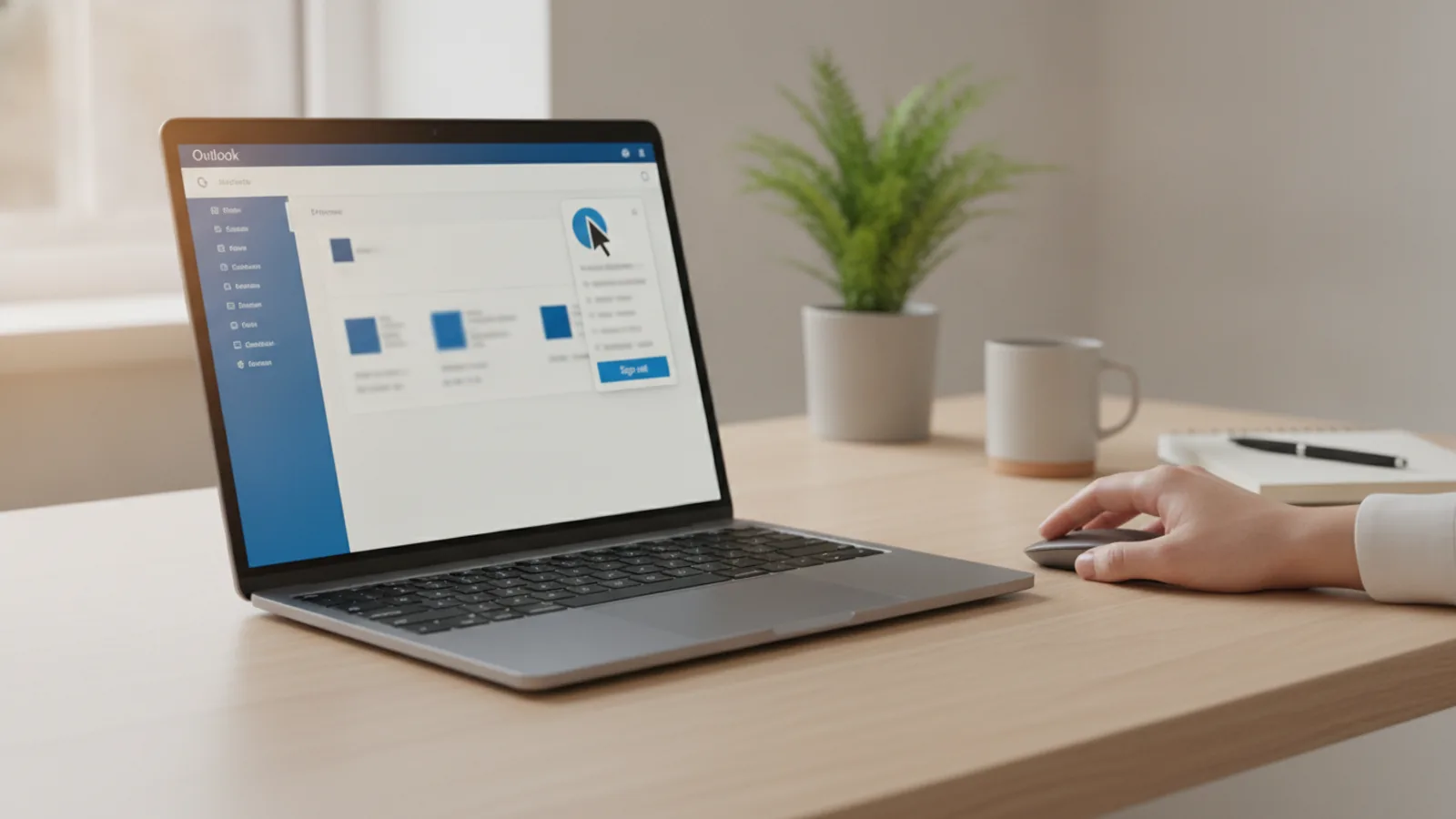
How To Sign Out Of Outlook
A practical step-by-step guide to how to sign out of outlook, including preparation, instructions, common issues, tips, and next steps.
How To Sign Out Of Outlook
This guide explains how to approach how to sign out of outlook, including the preparation, practical steps, common mistakes, and final checks that help you finish with confidence.
Before You Start
Step-by-Step Instructions
Quick Reference
Common Problems When You Sign Out Of Outlook
Even though signing out of Outlook is usually straightforward, you might encounter a few common issues. Knowing how to fix them can save you time and frustration.
Problem 1: "Sign Out" Option is Missing or Greyed Out
Sometimes, the "Sign out" option in Outlook on the web might seem missing or unavailable. This can happen if your browser is having a temporary glitch or if your organisation uses specific security settings that alter the default options.
Problem 2: You're Still Signed In After Clicking "Sign Out"
You might click "Sign out" but find that if you navigate back to Outlook.com, you're still logged in. This usually happens due to browser caching or linked Microsoft services.
Problem 3: Cannot Remove Account from Desktop App
On the desktop application, you might find that removing an account gives an error, or the option is greyed out. This typically occurs if it's the primary account for the Office suite or if there are corrupted profile files.
Problem 4: Mobile App Keeps Re-signing You In
After removing an account from the Outlook mobile app, it occasionally re-adds itself or prompts you to sign in immediately, especially if it's tied to your device's default email setup.
Advanced Tips for How to Sign Out Of Outlook
Beyond the basic steps, there are several advanced strategies and tips that can enhance your security and control over your Outlook account.
Manage Connected Devices via Microsoft Account
For ultimate control, regularly check the devices that are signed into your Microsoft account. Microsoft provides a central dashboard where you can review and remotely remove devices you no longer recognise or use.
This is particularly useful if you've sold an old laptop or lost a phone and couldn't sign out manually.
Using Private or Incognito Mode for Temporary Access
When you need to access Outlook on a public or shared computer but don't want to leave any traces, always use your browser's private browsing or incognito mode.
However, it's still good practice to click "Sign out" within Outlook before closing the private window, just to be absolutely sure.
Regular Security Reviews
Make it a routine to review your Microsoft account's security activity. This can help you spot any unusual sign-in attempts or locations, indicating someone else might have accessed your account.
Combined with strong passwords and two-factor authentication, these advanced tips provide a robust defence for your Outlook account.
How To Sign Out Of Outlook FAQ
Here are some frequently asked questions about signing out of Outlook to help clarify common doubts.
Q: What's the difference between "Sign Out" and "Remove Account"?
A: "Sign Out" (typically for web versions) ends your current active session, meaning you are no longer logged into Outlook in that browser. "Remove Account" (typically for desktop and mobile apps) takes it a step further: it removes the account configuration and its associated data from the application on that specific device. This means the app will no longer sync emails or calendars for that account, and you would need to set it up again to regain access.
Q: Will signing out of Outlook also sign me out of other Microsoft services like OneDrive or Word?
A: It depends on the method you use. If you sign out of Outlook on the web, you might still be signed into other Microsoft services in separate tabs or windows if they share the same login session. If you sign out of your main Microsoft account through account.microsoft.com or use the "Sign out everywhere" feature, then yes, it will typically sign you out of all Microsoft services linked to that account on that specific browser or device. For desktop apps, signing out of Office Account on Windows will sign you out of all Office apps on that PC.
Q: Can I remotely sign out of Outlook if I've forgotten to sign out on a public computer?
A: Yes, you can. The most effective way is to use the "Sign out everywhere" feature via your Microsoft account security dashboard (account.microsoft.com/security). This will force all active sessions of your Microsoft account, including Outlook, to terminate across all devices and browsers within 24 hours. Alternatively, changing your Microsoft account password will also force a sign-out on most active sessions.
Q: I use multiple Outlook accounts; how do I sign out of just one?
A: In Outlook on the web, if you have multiple accounts open, you usually need to sign out of each one individually through their respective profile pictures. In desktop and mobile apps, you can specifically select the account you want to remove from the settings or accounts list without affecting others.
Q: What happens to my emails after I sign out?
A: Your emails remain securely stored on Microsoft's servers. Signing out only disconnects your device or browser from accessing your account. None of your emails or data are deleted when you sign out; they simply become inaccessible until you sign back in.
Final Checklist for How to Sign Out Of Outlook
Before you consider yourself completely signed out and your account secure, run through this quick checklist:
By following these steps and checks, you can be confident that you have properly signed out of Outlook and secured your email account on any device. Your digital safety is paramount, and taking these few minutes can prevent future problems.